
Pay a Person
Pay non-members with Pay a Person.
Electronically pay anyone via phone or email.
Pay a Person in digital banking lets you send money to non-members anytime, anywhere. Paying a Purdue Federal member? We recommend using Pay a Member instead for instant transfers with no extra steps.
Instructions
Pay a Person can be found under Pay & Transfer in the main menu of digital banking.
1. In the Pay a Person tab, click the + button.
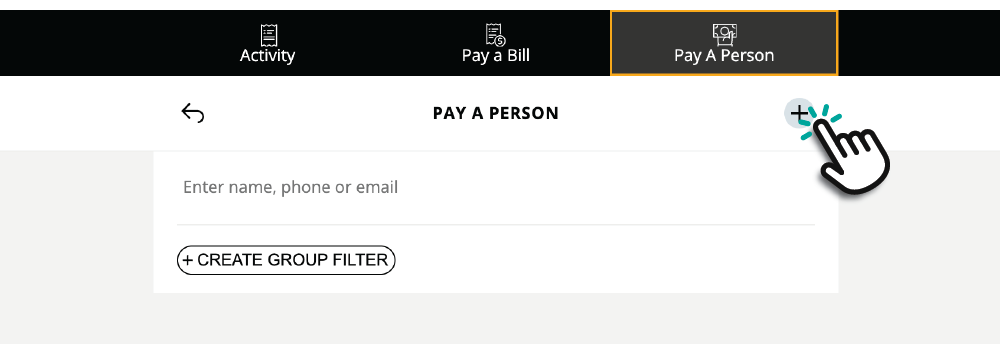
2. Enter the Contact's details.
3. Select the default payment delivery method for the Contact – either their mobile number or email address.
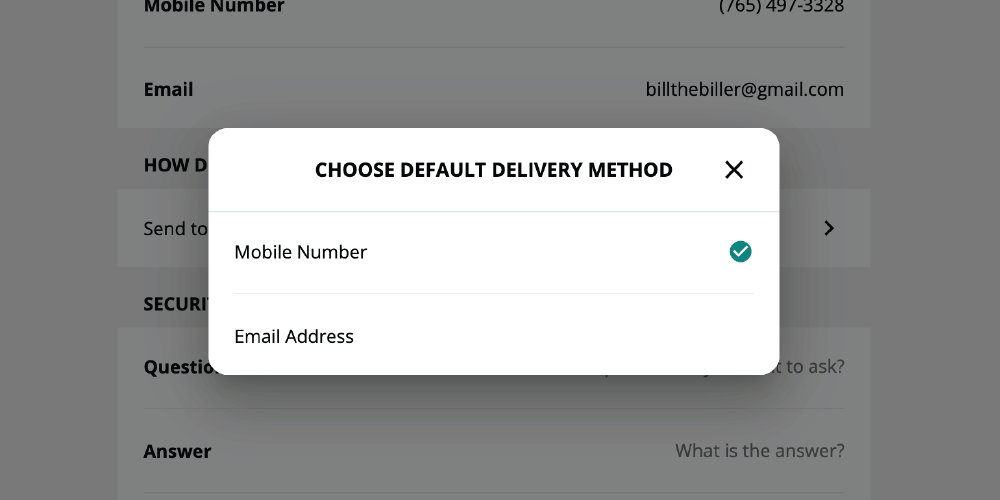
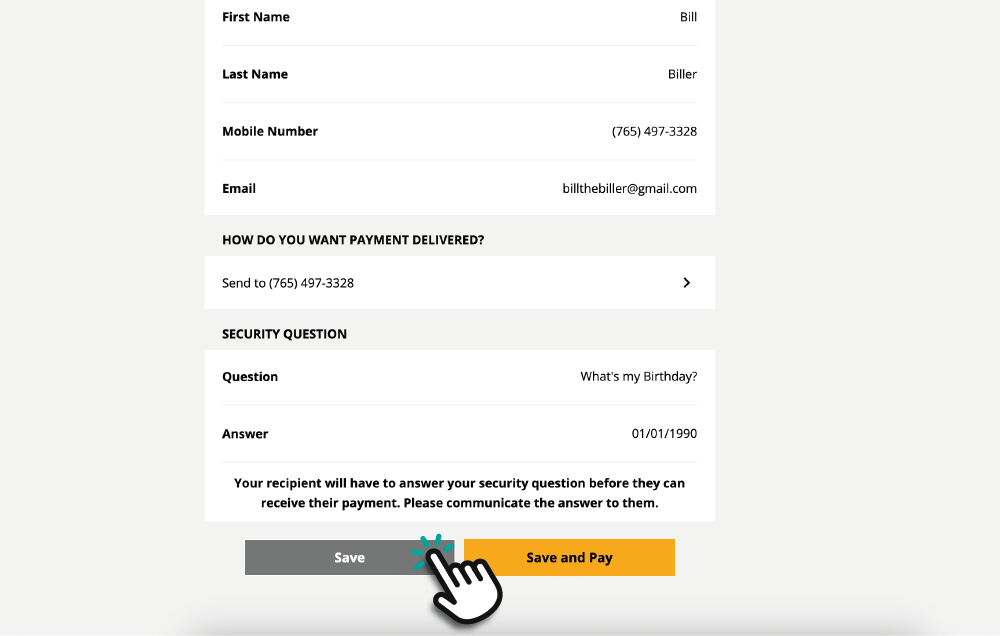
4. Select a security question to share with them so they can redeem their payment securely.
Note: The first time you send this Contact a payment, they will get a message with a link. This link takes them to the security question you created where they will need to enter the security answer you set. Once completed the Contact will enter their bank account details. Any time your send this payment to the Contact, the money will be deposited into the account that was previously entered.
5. Click Save or Save and Pay. Save will add the Contact to your contact list. Save and Pay adds the Contact to your contact list and lets you schedule a payment.
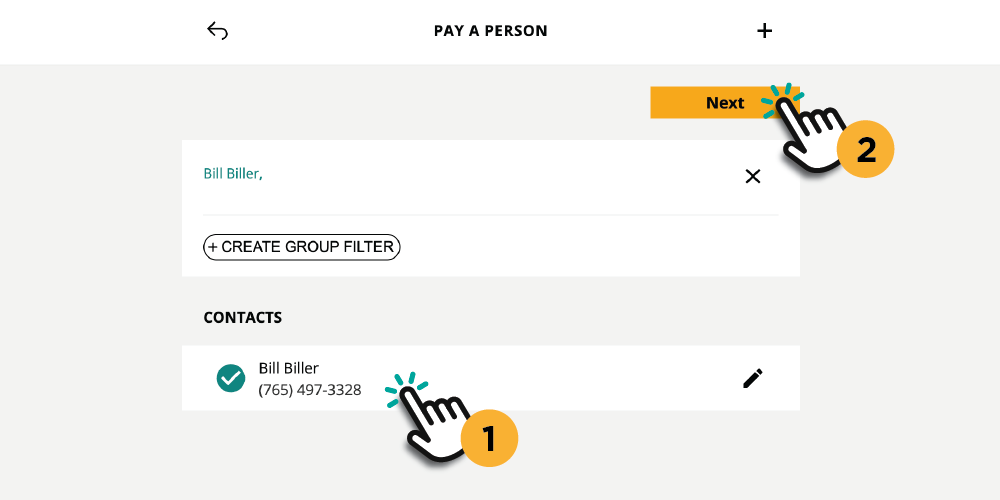
1. Click to select the Contact(s) you’d like to pay. Then click Next.
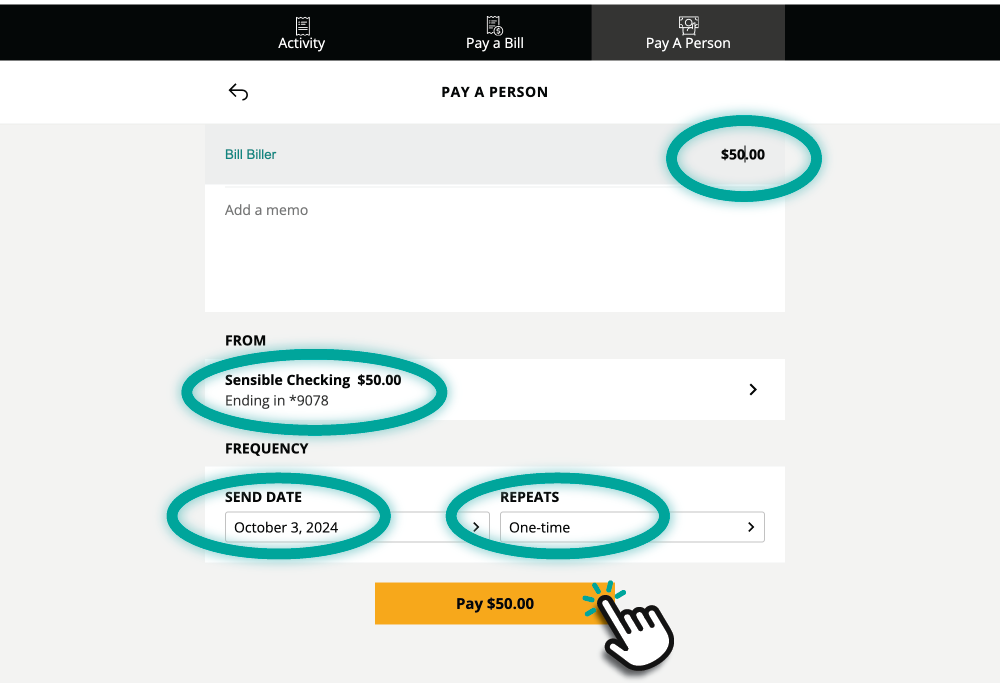
2. Enter the amount, send date and account you’d like the money to be transferred from. Then click the gold Pay button.
3. Confirm your payment and then click Done.
1. Select the Contact(s) you’d like to pay. Then click Next.
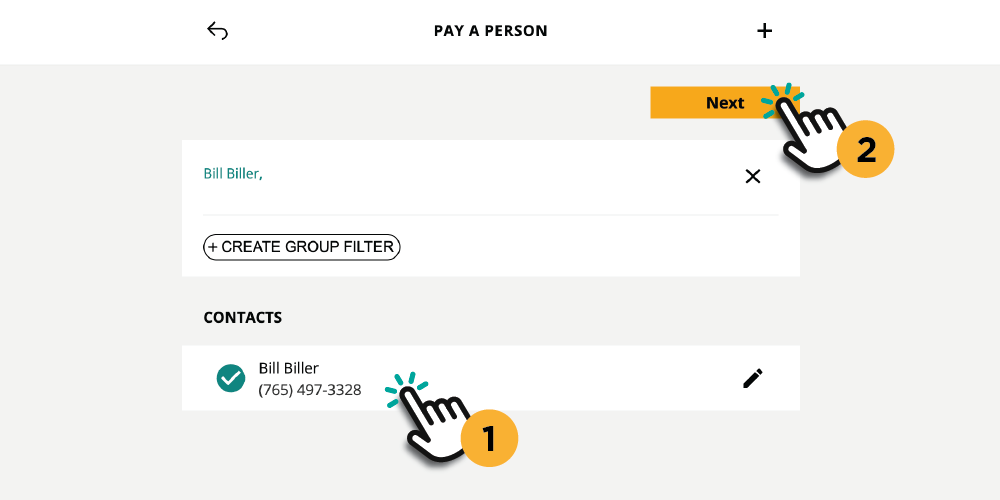
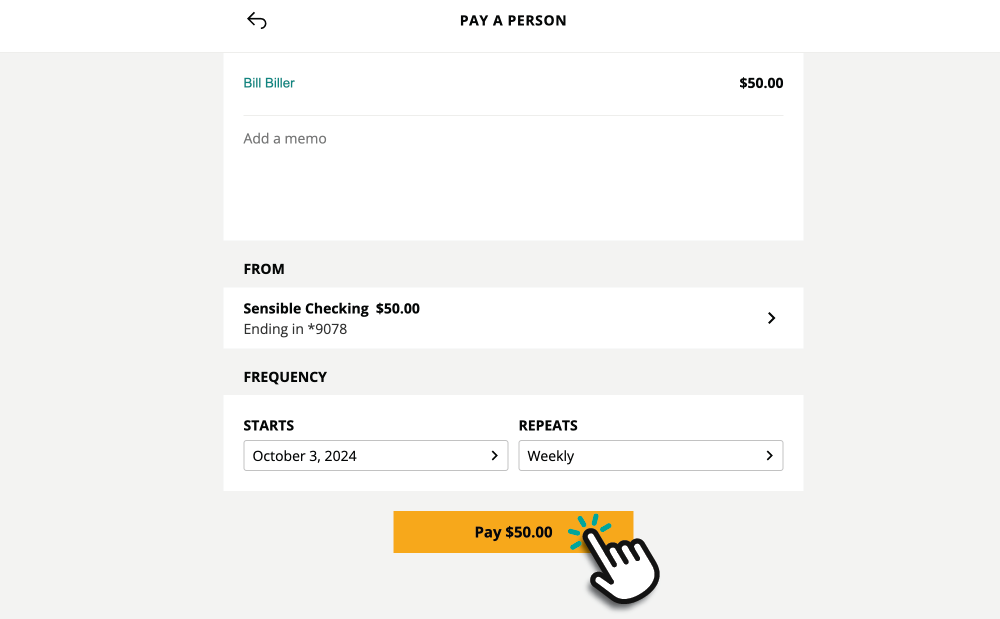
2. Enter the amount, send date and account you’d like the money to be transferred from. Then click the box under Repeats.
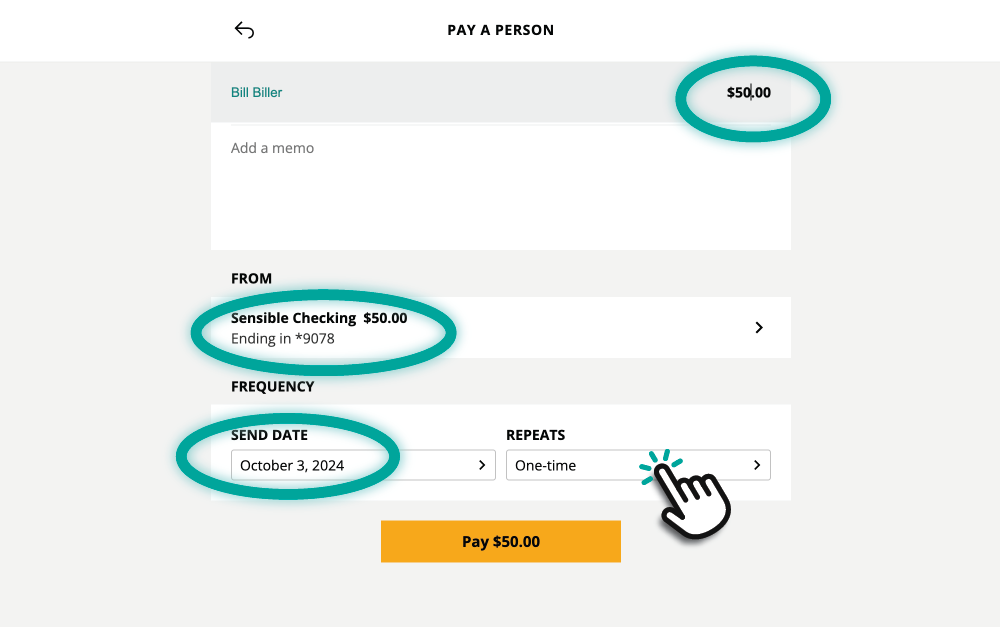
3. Select how often you’d like the payment to repeat. Select Until I cancel, after a number of payments, or an end date for your recurring payment. Then click Done.
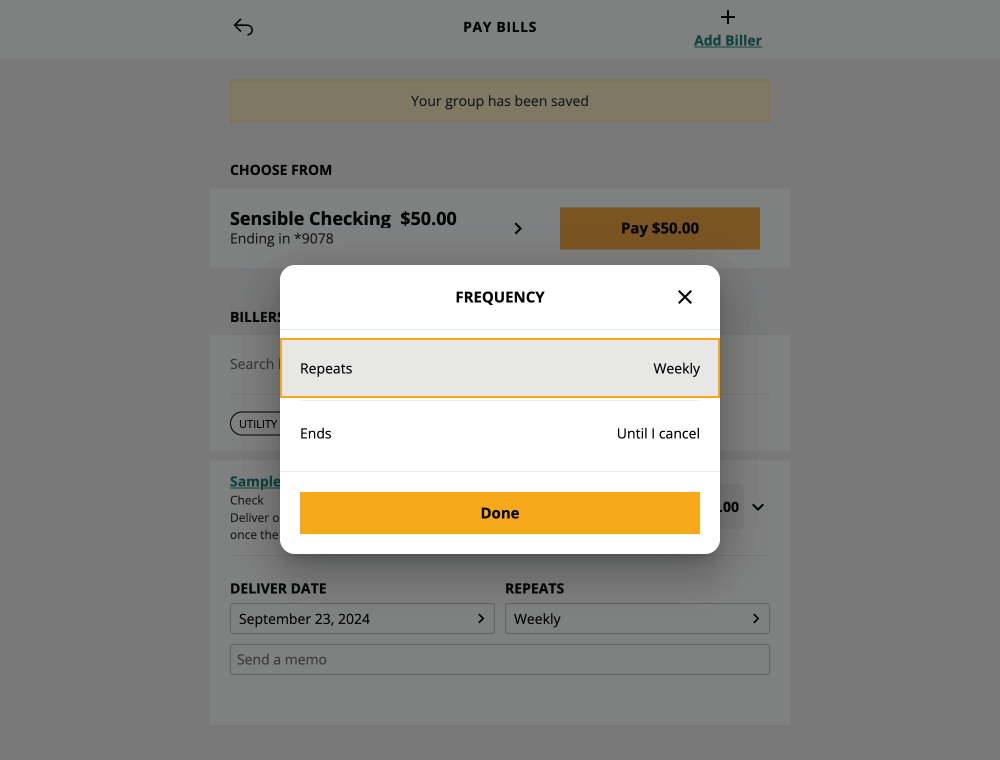
4. Click Pay.
1. Go to the Activity tab at the top of the module. Then click the three dots on the right and select Settings.
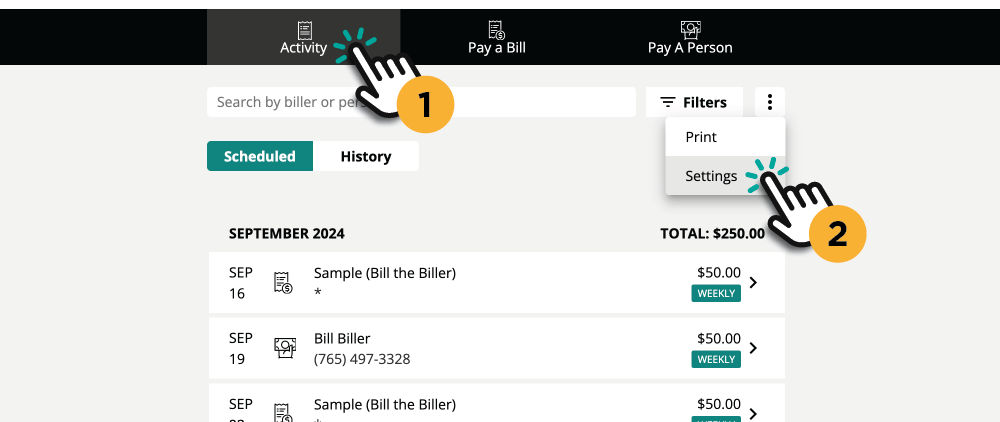
2. Select either Pay a Bill or Pay a Person.
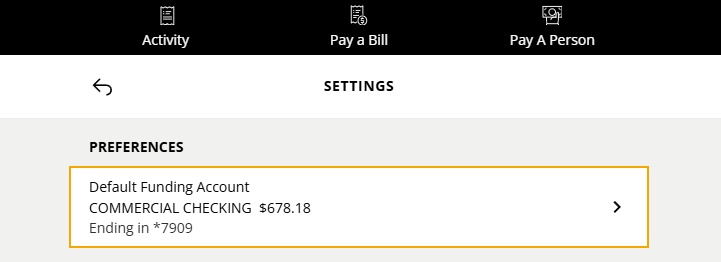
3. Under Preferences, click Default Funding Account and select your desired account.
1. Go to the Activity tab at the top of the module. Then click the three dots on the right and select Settings.
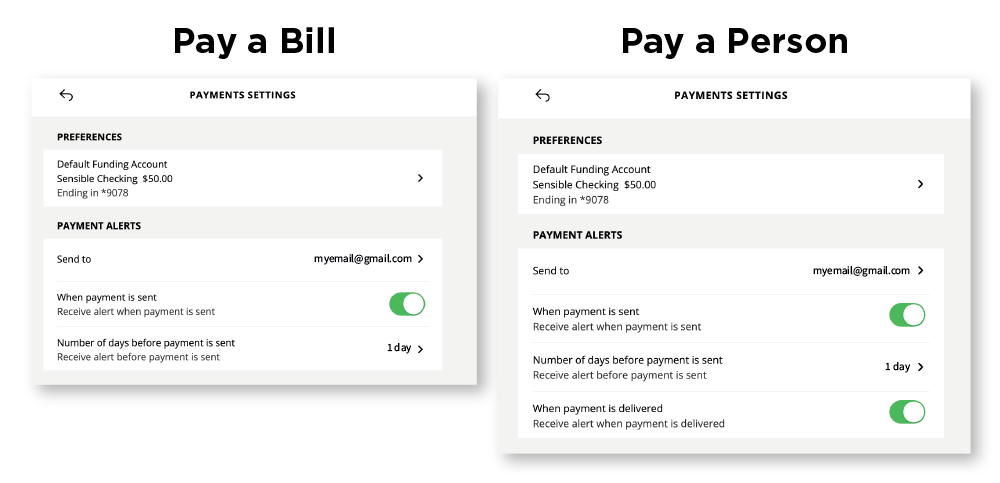
2. Select either Pay a Bill or Pay a Person.
3. Under Payment Alerts, make your selections.
Old alerts set up before October 22, 2024
Any alerts you've set up before October 22, 2024 will continue to be sent to you as usual. If you need to change or delete one of these old alerts, please reach out to us at 800.627.3328. We're here to help!
FAQs
This is best done in Pay a Bill, not Pay a Person. In Pay a Bill, select the option to manually add a biller. Then check "I don't have an account number." Enter the necessary contact information for your biller. Then, you will be able to schedule check payments to that biller.
Please note: The answer to the security question is space sensitive. That means if you write “PurdueFederal” without spaces and the recipient writes “Purdue Federal” with spaces, the security question would be invalid. Your recipient has a limited number of attempts before the transaction is cancelled, so communicate the exact answer.
Pay a Person is a new service connected to our Pay a Bill system and can be used to transfer money to individuals who are not members of Purdue Federal Credit Union.
Pay a Member is our member-to-member payment system, which provides free and secure transfers between Purdue Federal members within minutes. If you’re transferring funds to another member, we recommend Pay a Member for convenience.
23 Please refer to the Payment Services Terms and Conditions for full disclosures.